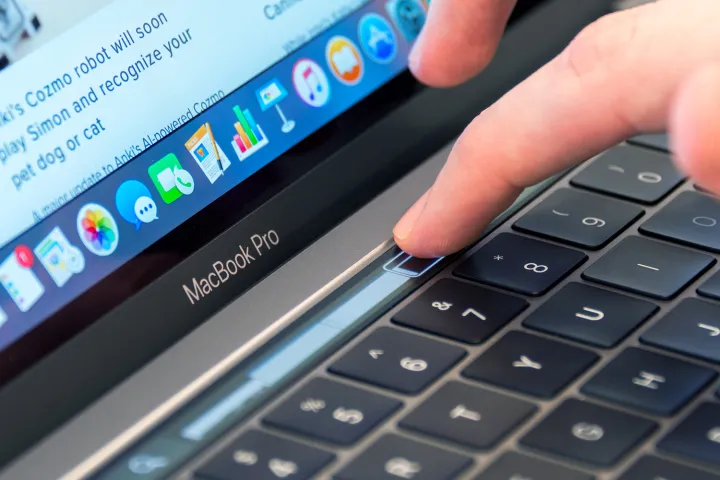
Learning how to take a screenshot on your Mac is undoubtedly an essential skill that can come in handy in various situations. Whether you want to capture a funny conversation, save an image, or document an error message, knowing how to screenshot on Mac can save you time and effort. Fortunately, Apple has made it incredibly easy to capture screenshots on their devices, offering several built-in methods for Mac users to choose from. In this article, we will explore different ways to screenshot on Mac, whether you want to capture the entire screen, a specific window, or a selected portion.
Whether you are a beginner or an experienced Mac user, this guide will walk you through the simple steps to take screenshots on your Mac. We will discuss the various keyboard shortcuts, Mac’s built-in screenshot tools, and how to customize your screenshot preferences. So, whether you’re looking to capture a still image or record your screen activities, let’s dive into this tutorial and learn how to screenshot like a pro on your Mac.

How to Screenshot on Mac
To take a screenshot on a Mac, you can use a combination of keystrokes or utilize the built-in screenshot tool called Grab. The quickest way to capture the entire screen is to press the Command + Shift + 3 keys simultaneously. This will save the screenshot as a file on your desktop. If you only want to capture a specific portion of the screen, you can use the Command + Shift + 4 keys, which will turn your cursor into a crosshair. Click and drag to select the area you want to capture, and then release the mouse button to take the screenshot. The image will be saved as a file on your desktop.
If you prefer a more advanced screenshot tool, you can use Grab. It is a pre-installed application on Mac and can be found in the Utilities folder of your Applications. With Grab, you have more options such as capturing a specific window, capturing a selected portion, or taking timed screenshots. Simply open Grab, select the desired capture mode from the menu bar, and follow the on-screen instructions. Once you have taken a screenshot using Grab, you can save it or copy it to the clipboard for further use.
Conclusion
Taking screenshots on a Mac is a simple and convenient process. Whether you choose to use keyboard shortcuts or the built-in Grab tool, capturing screenshots is a useful skill that can be applied in various situations. By familiarizing yourself with the different methods and options available, such as capturing specific windows or using timed screenshots, you can easily customize your screenshot preferences to suit your needs. So, whether you’re a beginner or an experienced Mac user, mastering the art of screenshotting on your Mac will undoubtedly save you time and effort in capturing and documenting important information.
Leave a Reply